
Related articles: View the Dashboard Slides
In this article:
- Customize Dashboard Content
- Reorder Content
- Add an Image or PDF
- Add a YouTube Video
- Change Slide Interval/Timing
- Turn Autoplay On and Off
- Show Budget Goals
- Show Sales Total or Estimate
- Hide Dollar Amounts
- Daily Budget Projections Based On Working Days or Days in Month
- Display the Material Budget Based on Sales Total or Paint Hours on Dashboard Slides
- Display Fixed Dollar Budgets for Material Categories on Dashboard Slides
- Go to the
 Menu → Shop Settings menu.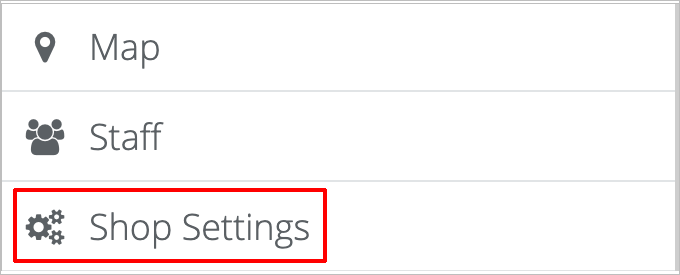
- On the Shop Settings page, click on the Dashboard tab.
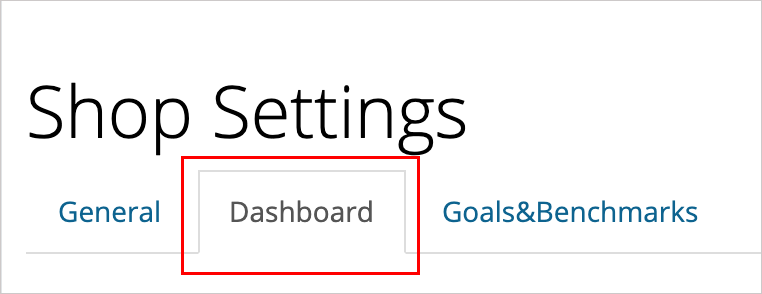
- Click on the blue Save Settings button at the bottom right of your screen when you’re done making changes.

Customize Dashboard Content
You can select the content you want to be displayed on your Dashboard slides by clicking the checkbox next to each item you want to be displayed. (Checked items will be displayed, unchecked items will not.)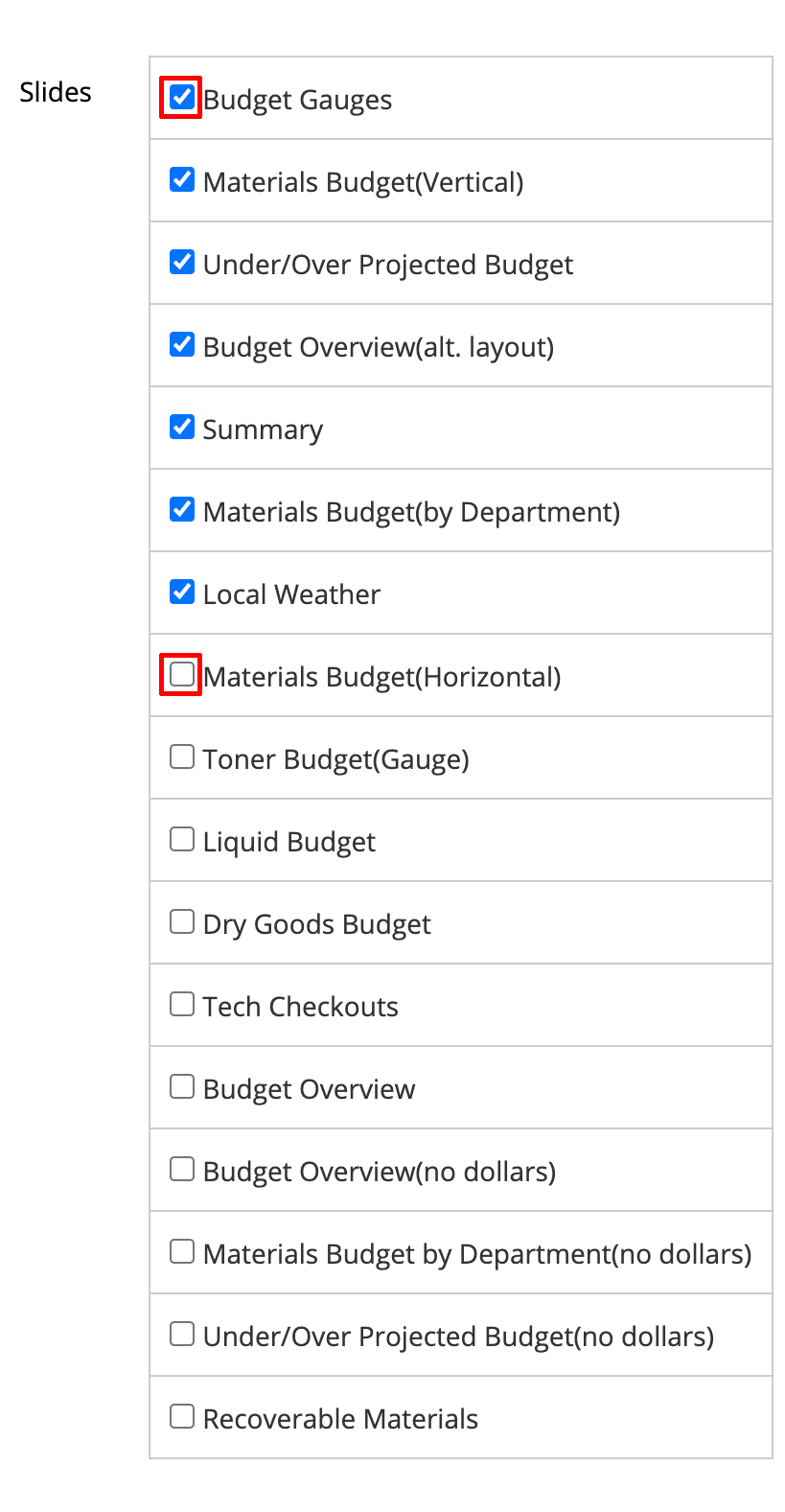
Reorder Content
You can also reorder the slide content by clicking on the slide you want to move and dragging it to the new position.
Add an Image or PDF
To add an image/PDF file or Youtube video, scroll down to the green + Add YouTube Video and + Upload Image/PDF buttons. You can display both YouTube videos and Images/PDFs on the slides. Additionally, you can add more than one of each type.
Add a YouTube Video
To add a YouTube Video, after clicking the + Add YouTube Video button, you'll be prompted to paste the link to the video (from YouTube) in the entry box labeled Copy & paste a YouTube link.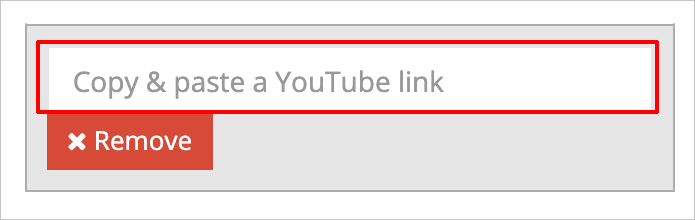
To add an Image or PDF file, after clicking the +Upload Image/PDF button, click on the Choose File button to browse to and select the file on your computer.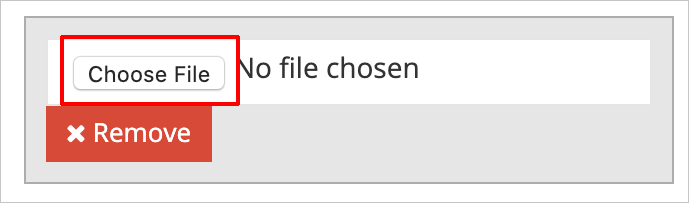
After you select videos and/or images, thumbnails will be displayed in the Dashboard slide listing. You can remove any of the images by clicking on the red x Remove button for each one that you want to remove. To remove videos, click on the small blue x to the right of the video thumbnail.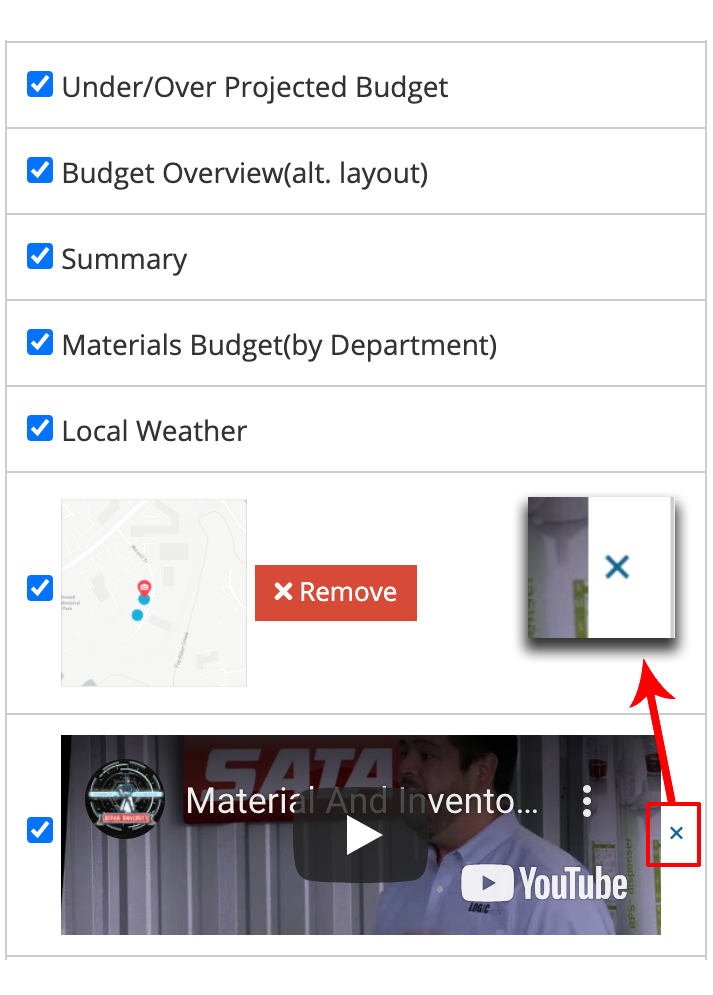
Change Slide Interval/Timing
To change how long each slide is displayed before automatically advancing to the next, scroll down to the Slide Interval field. Type the number (in seconds) that you want each slide displayed. If you don't enter anything here, the slide interval defaults to 15 seconds.

Turn Autoplay On and Off
To turn autoplay on and off, scroll to the toggle labeled Mute Videos. Click on the toggle to turn it on or off. When the toggle is gray, the option is turned off and videos will autoplay. When the toggle is blue, the option is turned on, and videos will not play until clicked.
Show Budget Goals
To show budget goals, scroll to the toggle labeled, Show Goals. Click on the toggle to turn it on or off. When the toggle is gray, the option is turned off budget goals will not be displayed. When the toggle is blue, the option is turned on, and budget goals will be displayed on the slides.
Show Sales Total or Estimate
To show the sales total or sales estimate, scroll to the toggle labeled, Show Sales. Click on the toggle to turn it on or off. When the toggle is gray, the option is turned off, and budget goals will not be displayed. When the toggle is blue, the option is turned on, and the sales total or estimate will be displayed.
Hide Dollar Amounts
To hide dollar amounts on the slides, scroll to the toggle labeled, Hide Dollar Amounts. Click on the toggle to turn it on or off. When the toggle is gray, the option is turned off, and dollar amounts will be displayed/not hidden. When the toggle is blue, the option is turned on, and the dollar amounts will not be displayed/will be hidden.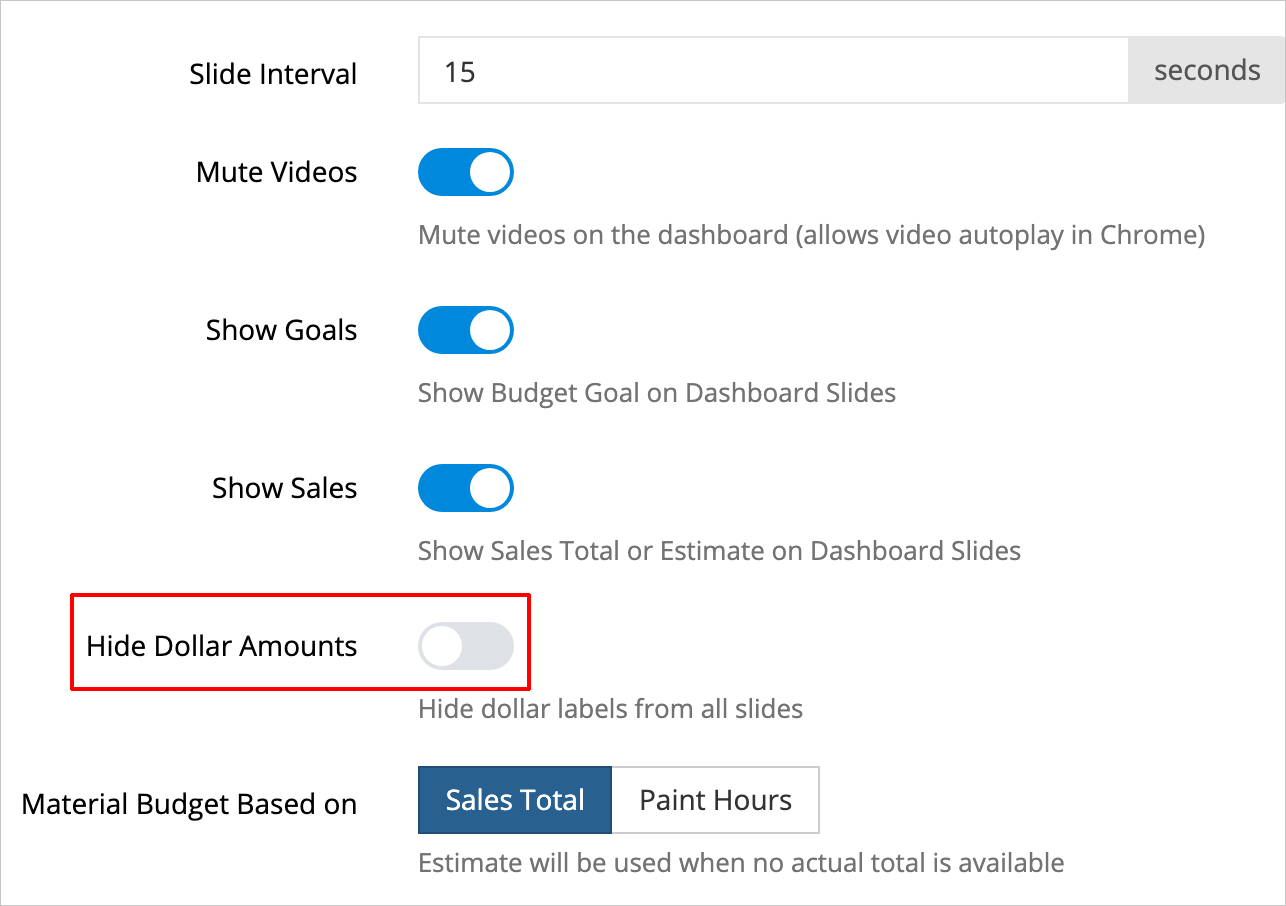
Daily Budget Projections Based On Working Days or Days in Month
To set daily budget projections to be made based on either the number of working days or the total days in a month, scroll to the option labeled Daily Budget Projections. Click on Working Days or Days of the Month to make your selection. The active selection will be dark blue. In the image below, the active selection is Working Days.
Display the Material Budget Based on Sales Total or Paint Hours on Dashboard Slides
To display the material budget based on sales total or paint hours, scroll down to the option labeled Material Budget Based On. Click either the Sales Total or Paint Hours button to make your selection. The active selection will be dark blue. In the image below, the active selection is Sales Total.
Display Fixed Dollar Budgets for Material Categories on Dashboard Slides
To display fixed dollar budgets for material categories, scroll to the Fixed Dollar Budgets heading. Enter the amount that you want to display on the dashboard slides, in dollar-decimal form (00.00) in each category text field.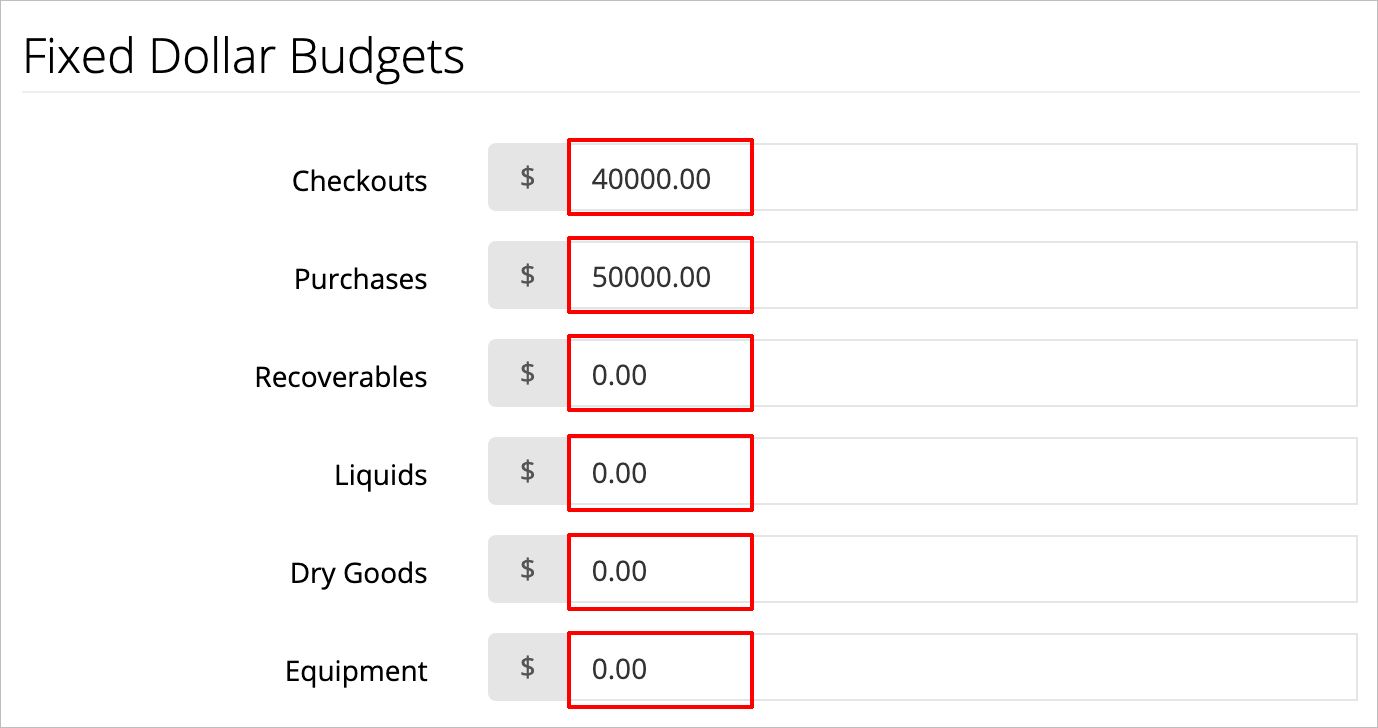
How to choose slide content. How to change the order of slides. How to add a YouTube video to dashboard slides. How to add an image to dashboard slides. How to add a PDF to dashboard slides. How to change the timing of slides. How to make slides play faster. How to make slides play slower. How to mute videos on dashboard slides. How to stop autoplay on dashboard slides. How to show budget goals on dashboard slides. How to show sales total or estimates on dashboard slides. How to hide dollar amounts from dashboard slides. How to show dollar amounts on dashboard slides. How to see dollar amounts on slides. How to show the material budget based on sales total. How to show the material budget based on paint hours. How to display fixed dollar budgets for material categories on dashboard slides. How to add dollar budgets for materials. How to display fixed dollar budgets for material categories on dashboard slides. How to add dollar budgets for materials.
Comments
0 comments
Please sign in to leave a comment.