
Related articles: Dashboard Settings
- Go to the
 Menu → Dashboard.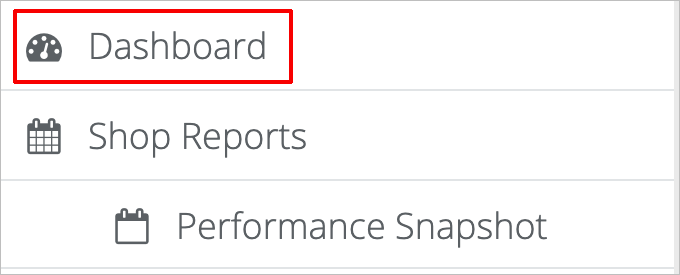
- The slides will auto play and show data for the current month. (If the slides do not auto play, you may need to check your browser settings.) To view data for a previous month or other time period, go to the top of your screen and click on the gray area displaying the date range.

- This will open a calendar and date range options. From here, click on a preset date range from the list
 . To select your own date range, select Custom Range from the list and then click on the start and end dates, for the range you want to view, on the calendar
 . After you've made your selection, click on the green Select button.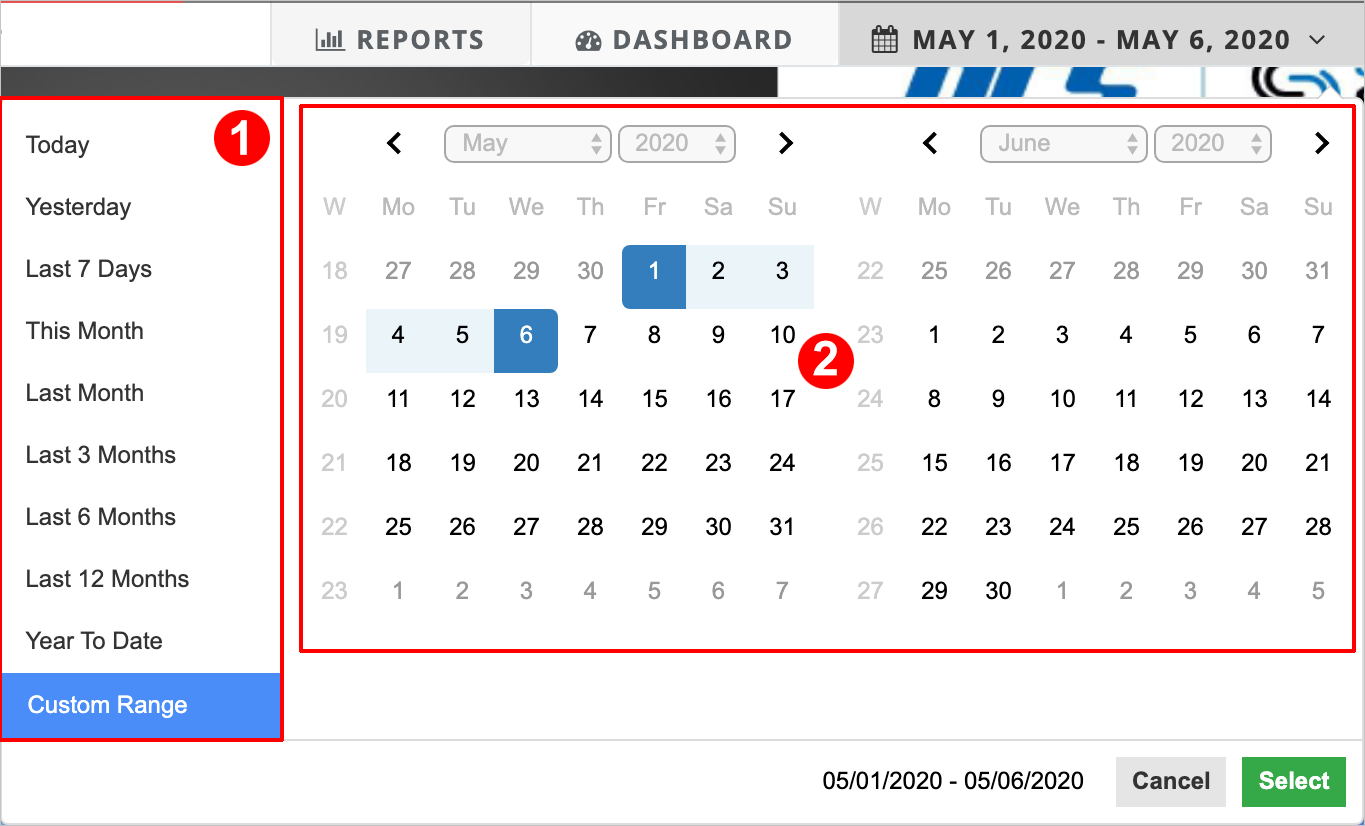
- You can click through the slides manually instead of letting them auto-play. To click through slides manually, go to the row of dots at the bottom of the slides/screen.
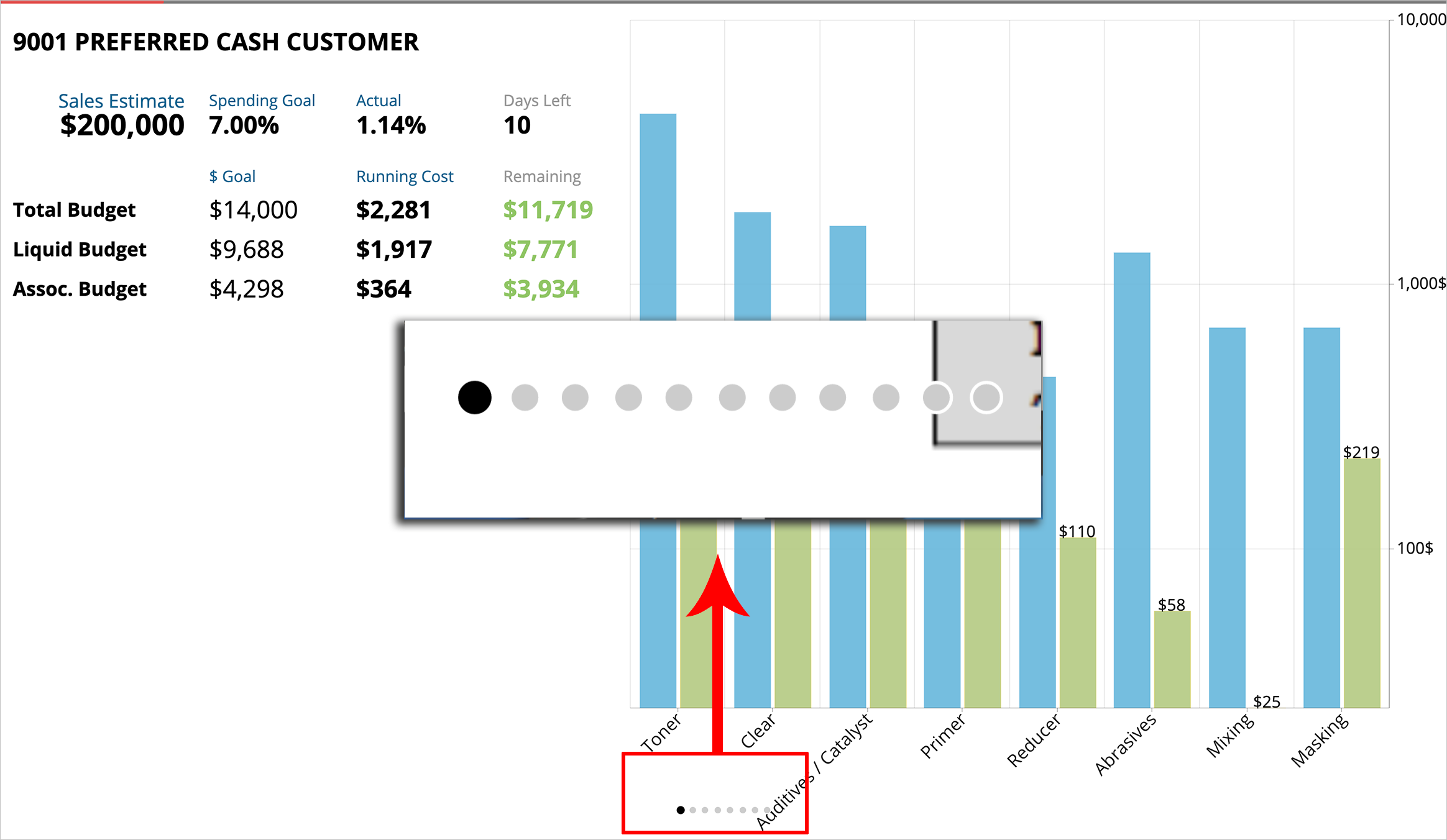
The first, black dot is the current slide. The gray dots represent each remaining slide . Click on the last gray dot to view the last slide  , or click on any of the gray dots to jump to that slide.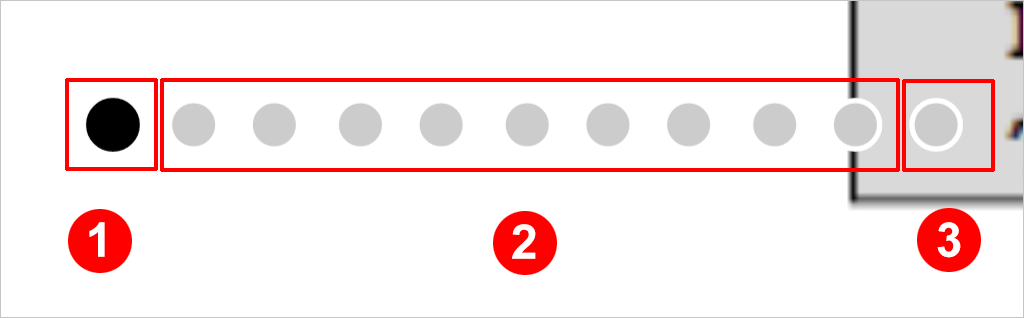
- Viewing options include fullscreen and night mode. To view the slides in fullscreen, click on the blue ⤧ Fullscreen button at the top right of your screen. To exit fullscreen mode, click the
⤧ Fullscreen button again.
- To view in night mode, click the blue ☾ moon icon to the left of the Fullscreen button. Night mode will change the background color of your slides from white to black.

When you enter night mode, the moon icon will become a sun icon. To leave night mode/return to a white background, click the blue ☼ sun icon.
How Tos: How to view the dashboard slides. How to view slides fullscreen. How to see slides in night mode. How to see slides with a dark background. How to view dashboard slides for a specific dates. How to see slides for a previous month. How to pick dates to view slides. Why aren't dashboard videos not autoplaying?
Comments
0 comments
Please sign in to leave a comment.