
To see the MSRP column or bin location on purchasing snapshots, these options must be turned on in the settings.
- Go to the
 Menu → Shop Reports → Purchasing Snapshots.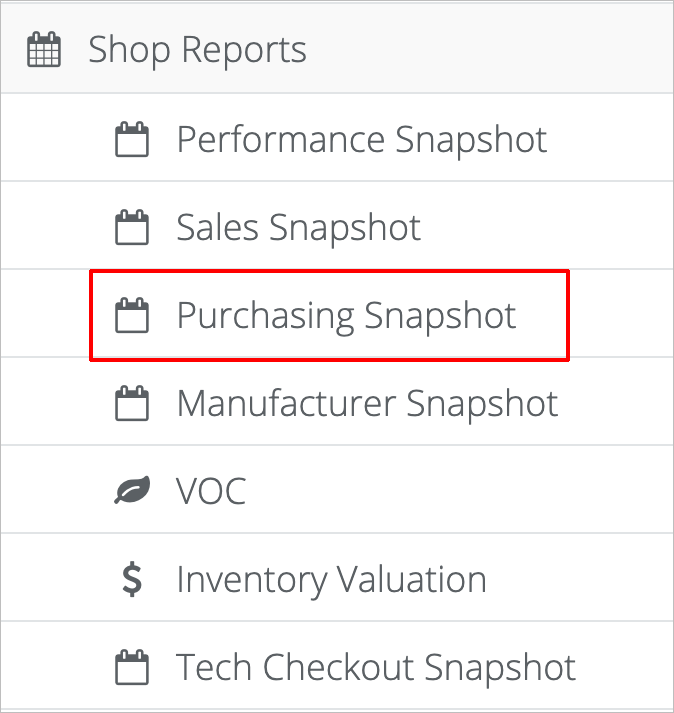
- On the Purchasing Snapshot page, you will see all products purchased, by default. To filter by taxable and non-taxable products, click on the appropriate button, at the top right of your screen. For example, if you want to view only taxable products, click on the Taxable button. The button will turn gray when you select it and that filter is turned on.

- To search for a specific product on the purchasing snapshot, type the product name in the search box under the page title, Purchasing Snapshot.

- By default, you see each product category and list of individual items in each category.
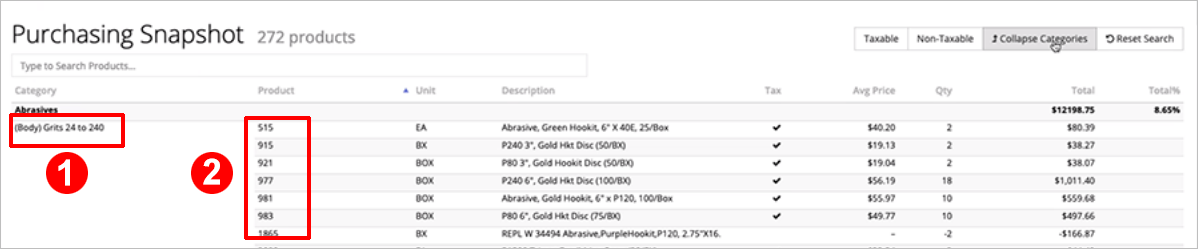
You can collapse the categories to view ONLY the total for each category without the individual product breakdown. To collapse the categories, click on the Collapse Categories button to the top right of the list. To return to viewing the products within each category, click on Collapse Categories again to turn it off. (When activate, the button will be gray. When inactive, it will be white.)
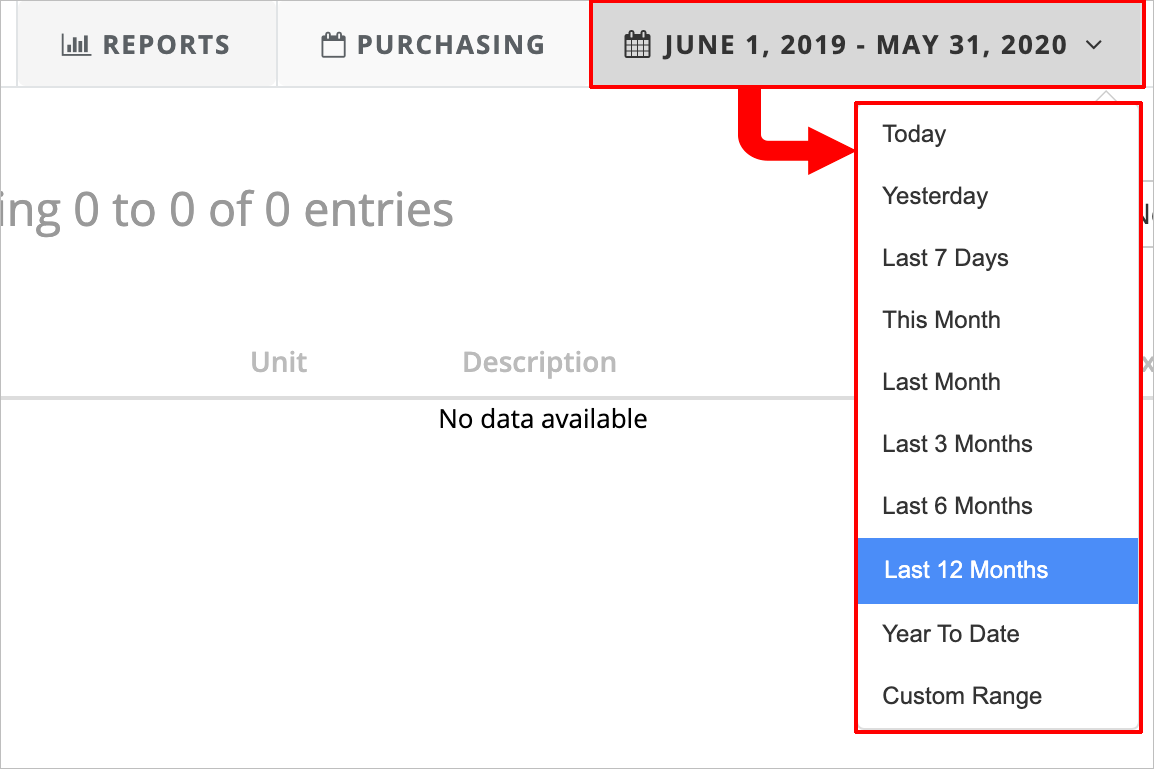
- To view a different date range, click on the date at the top center of the screen. Clicking on the date will open a pop-up menu where you can select the new date range you want to view.
- To print or save the snapshot as a PDF, click on the blue Print icon at the top right of the screen.

To print, select your printer in the print dialog box. To save as a PDF, click on Change for the printer destination and select Save as PDF. - To email the snapshot to yourself or someone else, click on the email icon at the top right of the screen.

In the E-mail report dialog box, type the address you want to email the report to and any messages. You can also choose to blind copy (BCC) someone. When you're done entering the necessary information, click the green Send button.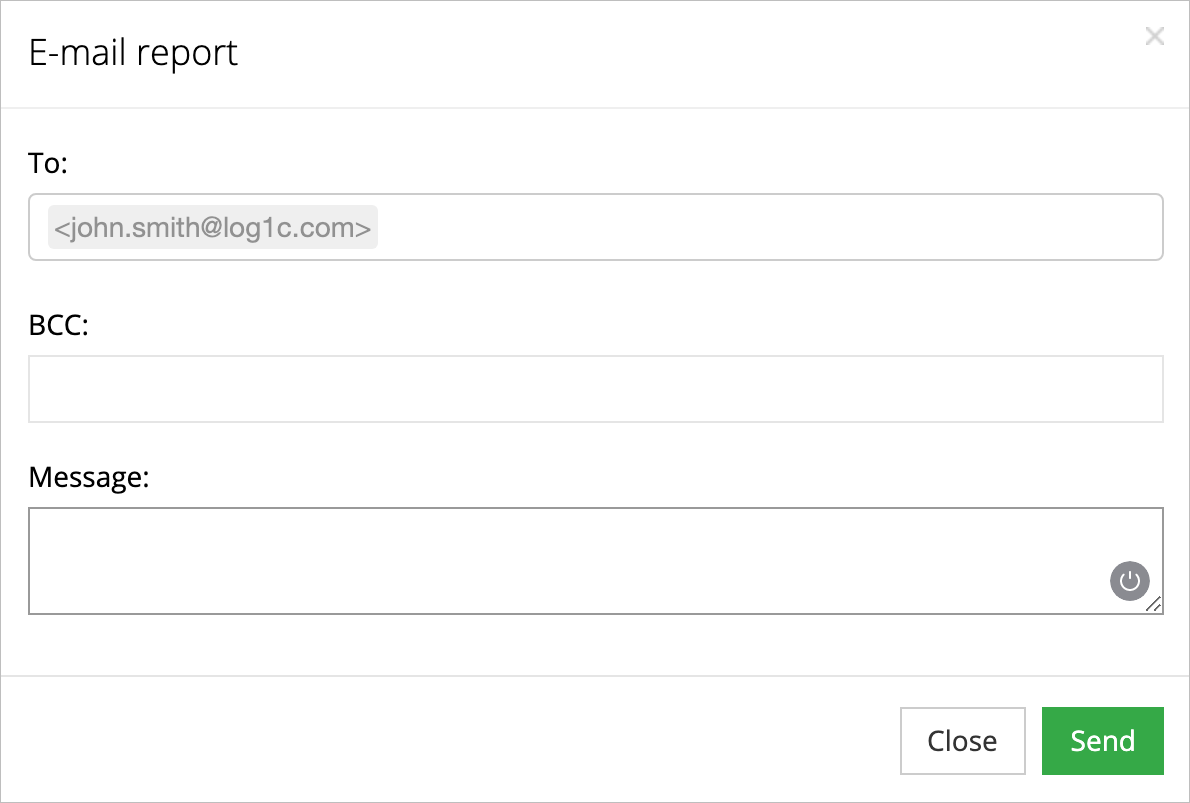
How Tos: How to view purchasing snapshots. How to printpurchasing snapshots. How to printpurchasing snapshots. How to savepurchasing snapshot as PDF. How to emailpurchasing snapshot. How to viewpurchasing snapshots for a different date range.
Comments
0 comments
Please sign in to leave a comment.