
To see the MSRP column on manufacturer snapshots, this option must be turned on in the settings.
- Go to the
 Menu → Shop Reports → Manufacturer Snapshot.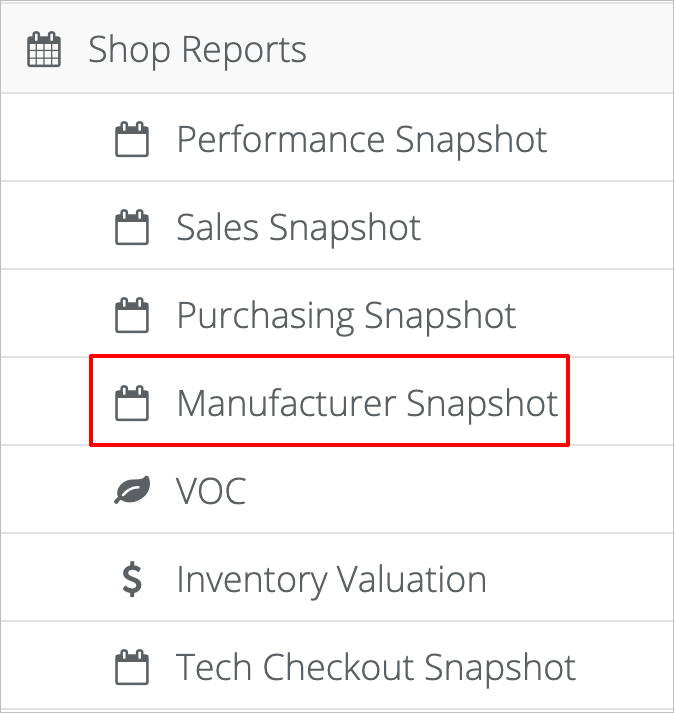
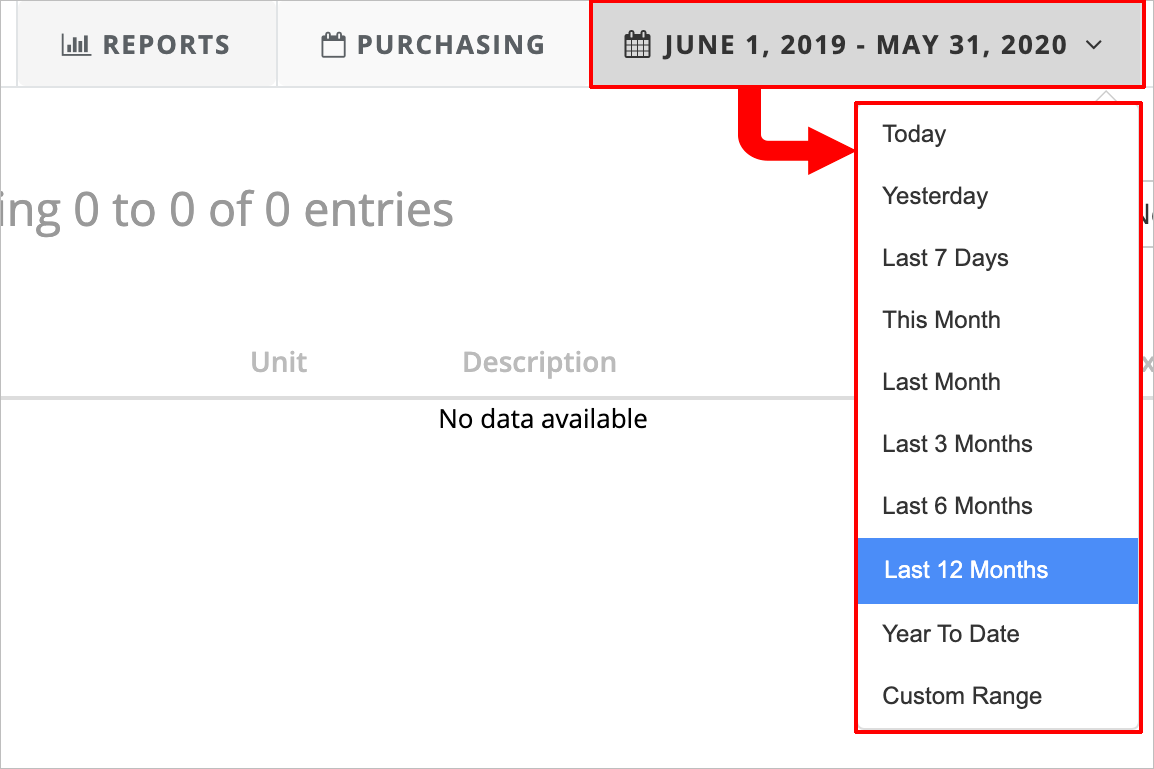
- To view a different date range, click on the date at the top center of the screen. Clicking on the date will open a pop-up menu where you can select the new date range you want to view.
- To print or save the snapshot as a PDF, click on the blue Print icon at the top right of the screen.

To print, select your printer in the print dialog box. To save as a PDF, click on Change for the printer destination and select Save as PDF. - To email the snapshot to yourself or someone else, click on the email icon at the top right of the screen.

In the E-mail report dialog box, type the address you want to email the report to and any messages. You can also choose to blind copy (BCC) someone. When you're done entering the necessary information, click the green Send button.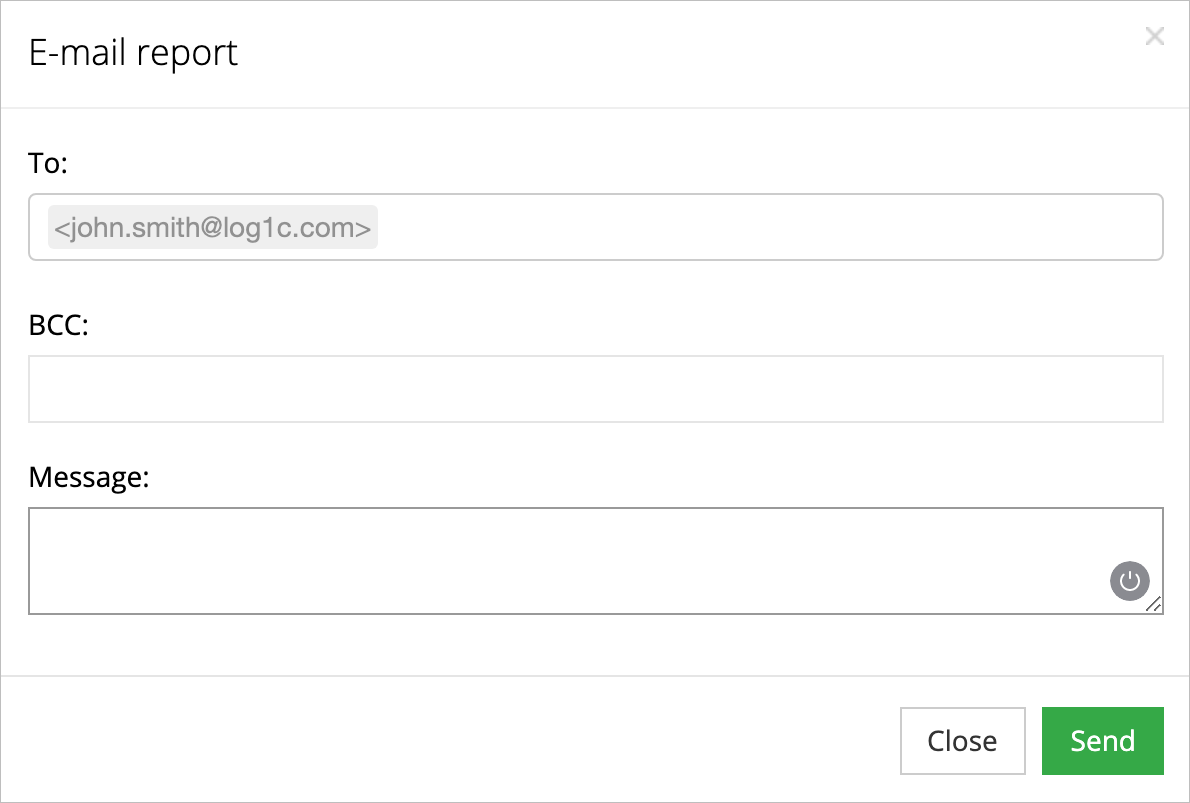
How Tos: How to view manufacturing snapshots. How to printmanufacturing snapshots. How to printmanufacturing snapshots. How to savemanufacturing snapshot as PDF. How to emailmanufacturing snapshot. How to viewmanufacturing snapshots for a different date range.
Comments
0 comments
Please sign in to leave a comment.